How to Choose the Right WooCommerce Payment Gateway
Compare Stripe, PayPal and Pay on Account, plus accounting integrations and smarter ecommerce...
You go to show off your shiny website to a client, or you’re about to hit “Publish” on the best blog post of your life and suddenly… nothing. Or worse, a white screen with a cryptic three digit 5XX or 4XX code and no explanations.
While we spend most of our time at DCOED pushing the boundaries of web design here in Bristol, a good chunk of our “quiet time” is actually spent playing digital detective fixing issues on sites we support, often built on a budget or by less experienced developers. When a site implodes, we don’t just guess – we go hunting for the smoking gun.
If you’re currently staring at a broken screen and contemplating throwing your laptop into the Harbourside, take a breath. Here is how you can diagnose and banish the digital demons.
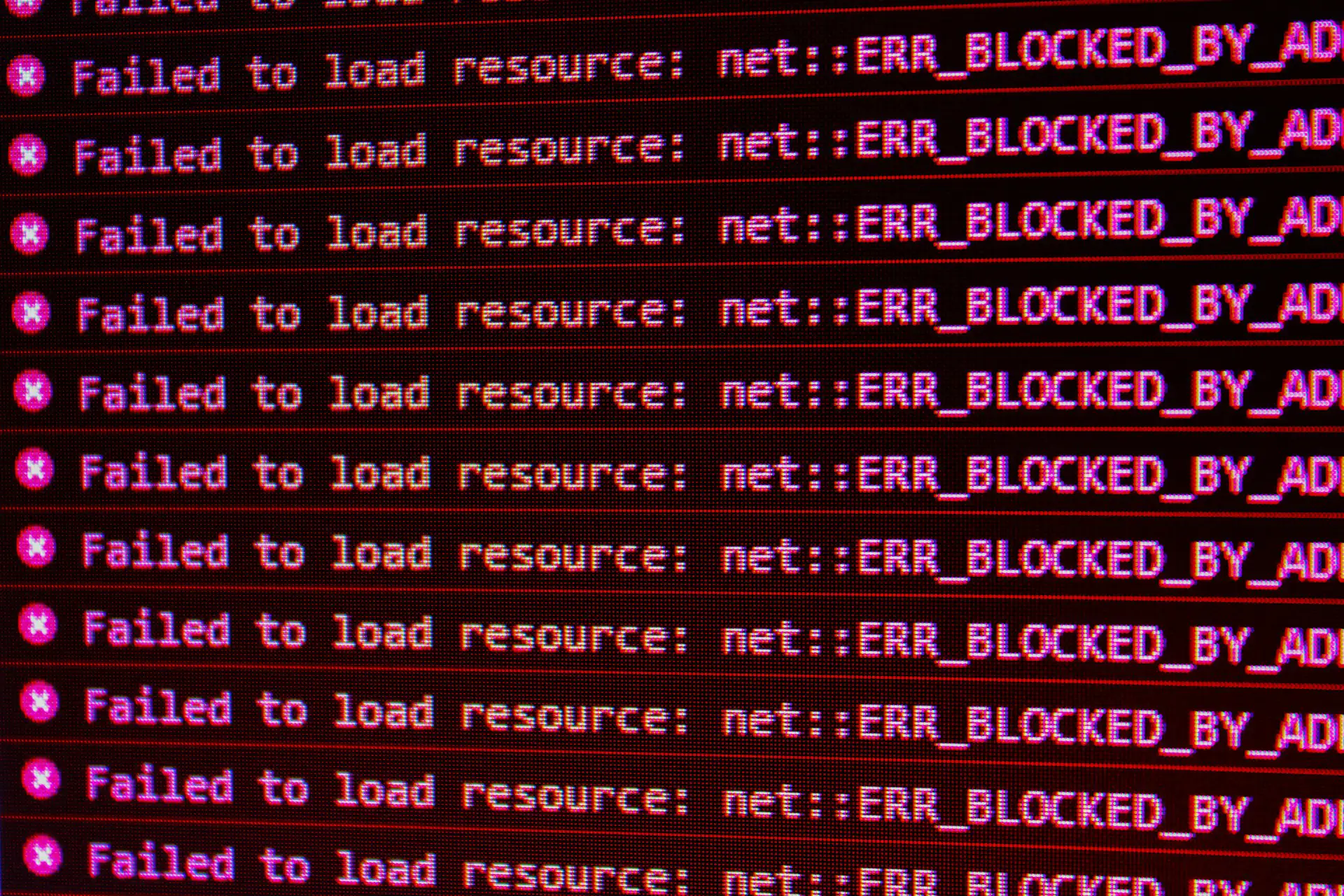
Sometimes a website isn’t actually broken at all; it’s just stuck in a loop. Before you panic, check if it’s a visual glitch or a cache issue. If your layout looks like a jigsaw puzzle put together by a toddler, your browser is likely “remembering” an old version of the site that no longer exists.
The Symptom: Overlapping text, missing images, or funky buttons.
The Fix: Try the Incognito Test. If it looks perfect in a private window, your site is fine – your browser just needs a fresh start. (Need a hand with that? Here’s our guide to clearing your cache).
In the world of WordPress, PHP is the engine. When the engine coughs, you get messages.
PHP7 recently reach end of life – we would strongly recommend upgrading to PHP8+ if you haven’t already. You’ll get improved security, faster load times and better search rankings but tread carefully as this is where older sites can come a cropper.
PHP Warnings: These are like the Check Engine light on your dashboard. The car is still driving, but something under the hood is annoyed. These won’t usually kill your site but they look messy to your visitors, can slow your site down or turn into bigger problems in future.
Fatal Errors: This is the full-blown breakdown. You’re likely seeing the “White Screen of Death.” A script has failed so badly that the whole site has pulled the emergency brake. You’ll probably need a developer to fix this one!
When things go South West (see what we did there?) your server keeps a diary of exactly what happened and who is to blame. These are your server logs.
Reading a log file can feel like deciphering The Matrix, but you’re just looking for a timestamp that matches the moment your site broke. It will usually point a finger directly at a specific plugin or a dodgy bit of code. It turns a guessing game into a targeted strike.
By default, WordPress is polite – it hides its errors so your visitors don’t see the backstage mess. But when you’re trying to fix things, you need it to be loud.
You can turn it on the by accessing your wp-config.php file and changing:
define( 'WP_DEBUG', false );
to
define( 'WP_DEBUG', true );
Suddenly that white screen will be replaced by actual text explaining exactly which plugin is throwing a tantrum. Just remember to flip it back to false when you’re done, or you’re essentially leaving your diary open for the whole world to read.
If your site is still running but feels sluggish or glitchy, our go-to is the Query Monitor plugin. It’s essentially an X-ray machine for your website. It shows you slow database queries, broken scripts and which plugins are hoarding all your performance. It’s the ultimate tool for finding the leak in your boat before you sink. Even if everything looks fine, it’s good practise to fix warnings before they become errors – you’ll save on server space if nothing else!
It is exponentially easier to find and fix an error on a custom-built site than a page builder like Wix or a heavy Elementor setup.
When you use those drag-and-drop services, the code is a black box. If something breaks, you’re stuck waiting for their support team to eventually get back to you. On a custom build, the code is clean and organised. We know exactly where every nut and bolt is located, which makes fixing things a matter of minutes, not days.
Most website meltdowns can be avoided with the right infrastructure. Our managed hosting service is built for speed and stability. We provide easy access to logs and a team that actually knows how to read an error log.
Sounds obvious but keep your website online for visitors when your origin server is unavailable. Cloudflare can be setup to serve limited copies of web pages available from the Internet Archive’s Wayback Machine.
If you’ve cleared the cache, checked the logs and the gremlins are still winning, it might be time for a professional intervention.
Is your site currently throwing a tantrum? Get in touch with the DCOED team and let’s get you back in business.

Cache (pronounced “cash”) is a temporary storage space that helps websites and apps load faster.
It saves copies of files you use often – like images or data – so your device doesn’t have to download them every time.
Learn how we optimise site speedNothing – it’s free! Get in touch and we will happily discuss your project and offer a no obligation quote.
Book your free discovery callIf you have a website, you will need web hosting.
We offer high performance, green web hosting but are also able to host on a platform of your choice. Just make sure it is suitable for your needs; a slow host is frustrating and bad for Search Engine Optimisation.
View our secure hosting packagesYes, we provide ongoing support and maintenance services to keep your website updated, secure, and performing optimally.
We offer comprehensive support packages for WordPress websites. Our services include regular updates, security monitoring, backups, performance optimisation, and technical support to ensure your website runs smoothly at all times.
Learn why updating Wordpress matters